
Visitor Management System

#1 Visitor Management System for Apartments and Gated Communities

One structured platform for visitor entries, staff movement, deliveries, incidents, patrol tracking, and gate operations — ad-free and DPDP-compliant.

25,000+ Housing Societies
4.7+ on App Stores
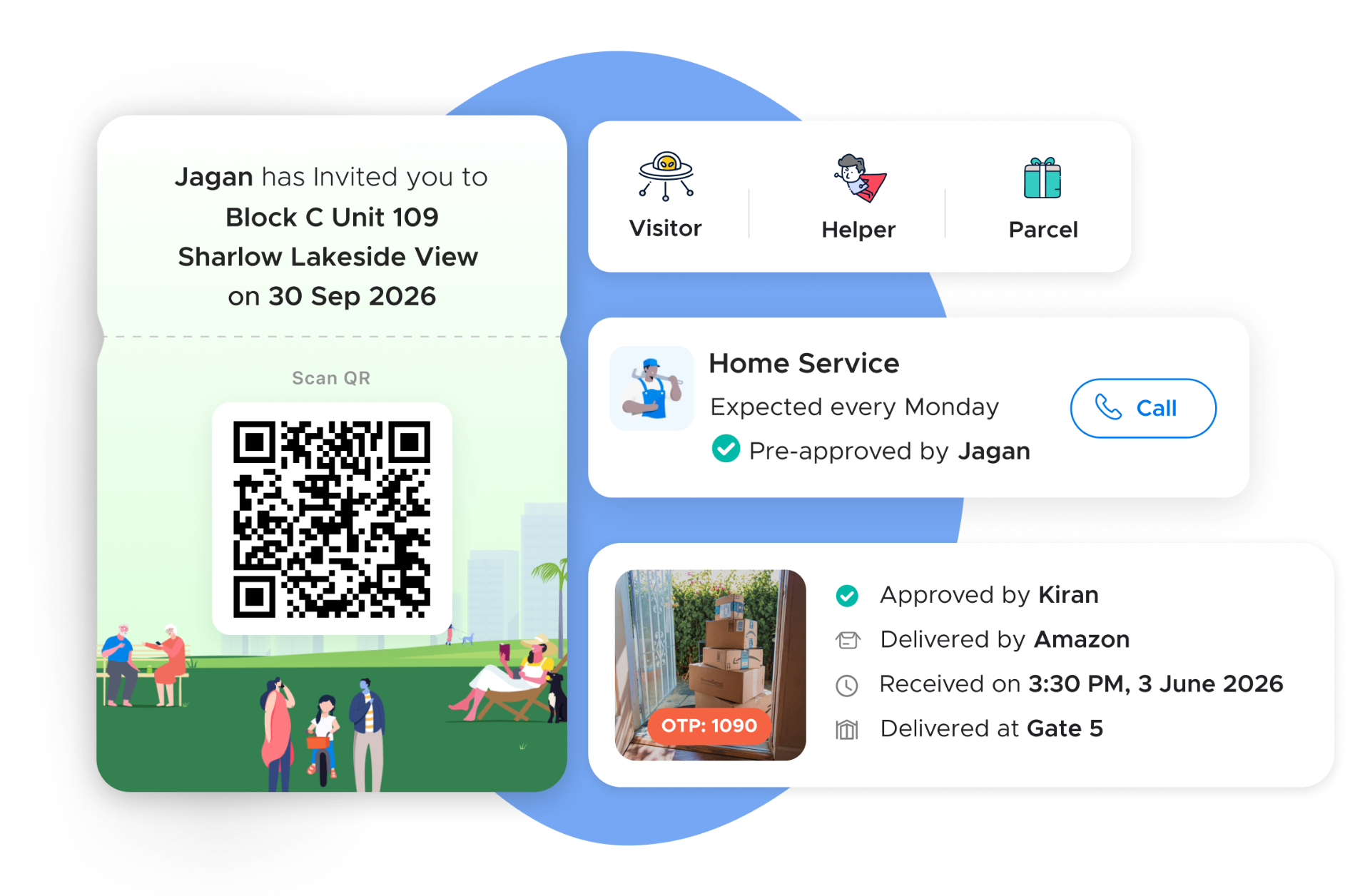
ADDA visitor management — QR pass, pre-approved helpers and parcel delivery
The Problem Today

What are the problems with Free/Ad-supported visitor management apps?

Most housing societies today run their gates on apps deployed for free. Here's what happens when your gate app runs on advertisement revenue.

Ads inside Visitor Notifications

Residents go to approve visitors, or pre-approve visitors, and they have to mandatorily see ads first.

Your Guest's data gets sold to advertisers

Guest logs, phone numbers, are sold to advertisers — without residents knowing.

Ads disguised as Notices

Sponsored content dressed as official announcements erodes trust in every message the app sends.

Support tied to Ad Performance

Communities that don't generate ad revenue get slower responses and limited access to their own data.

All-in-one security platform

Why do housing societies that take gate security seriously choose ADDA?

Most gate apps were built to acquire communities, not to secure them. Here is what changes when your visitor management is backed by 16+ years of experience across 25,000+ Communities.

Three-step visitor approval process — App, IVR, Call

Most visitor management systems send one notification and wait. If the resident doesn't respond, the guard calls manually. ADDA's approval flow is automated across three steps — app notification for 55 seconds, then automatic IVR call, then guard call.

Key Advantages
  • Simultaneous notification to all unit members — not just the primary resident
  • IVR fallback requires no smartphone — works for any resident on any phone
  • Manual guard call is the last step, not the first — reduces guard workload significantly
  • Every response is logged with method of approval and timestamp
In Practice

The escalation runs automatically — app first, IVR next, guard call last — so no visitor is left waiting and no resident is missed.

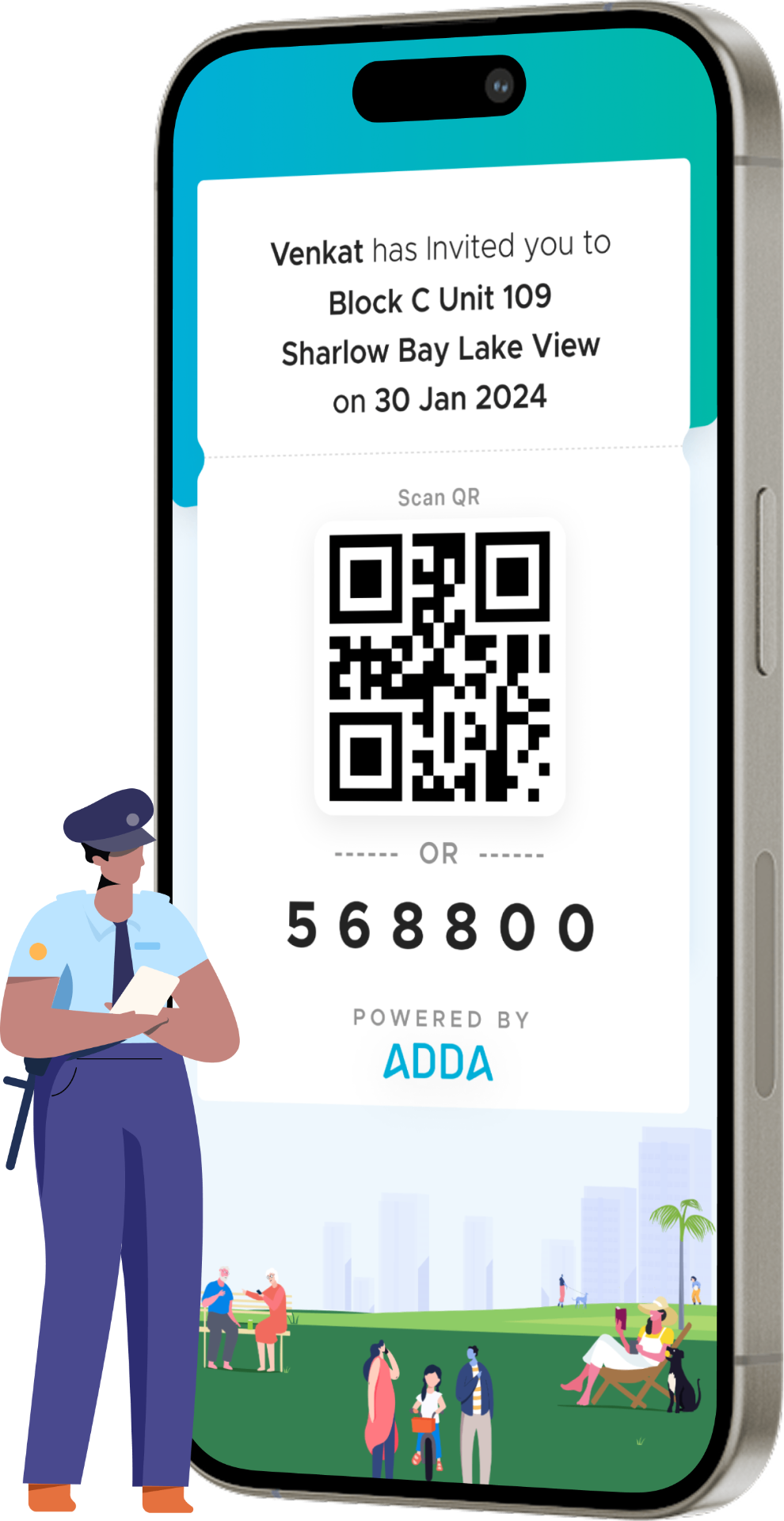
Expected visitor QR pass on phone

Expected visitors — pre-authorised entry with OTP and QR

Residents who know a visitor is coming can pre-register them in the ADDA app before they arrive. The system generates an OTP and QR code which the resident shares with the visitor. At the gate, the visitor presents the code, the guard scans it, and entry is admitted instantly — no approval wait, no phone call. Across communities using ADDA, guest entries are predominantly handled this way.

  • Visitor never waits at the gate for a phone call
  • Pass is time-bound — valid only within the configured arrival window
  • Admin can configure custom notes on every pass — community rules, gate instructions
  • Full entry log maintained with timestamp and visitor photo
  • OTP and QR are single-use — cannot be shared or reused after the visit

Example ·A resident pre-registers their elderly parents for a weekend visit. They arrive Friday evening, show the QR code at the gate, and are admitted in under 30 seconds — the resident is never called, and the entry is logged with in-time, out-time, and visitor details for all three days.

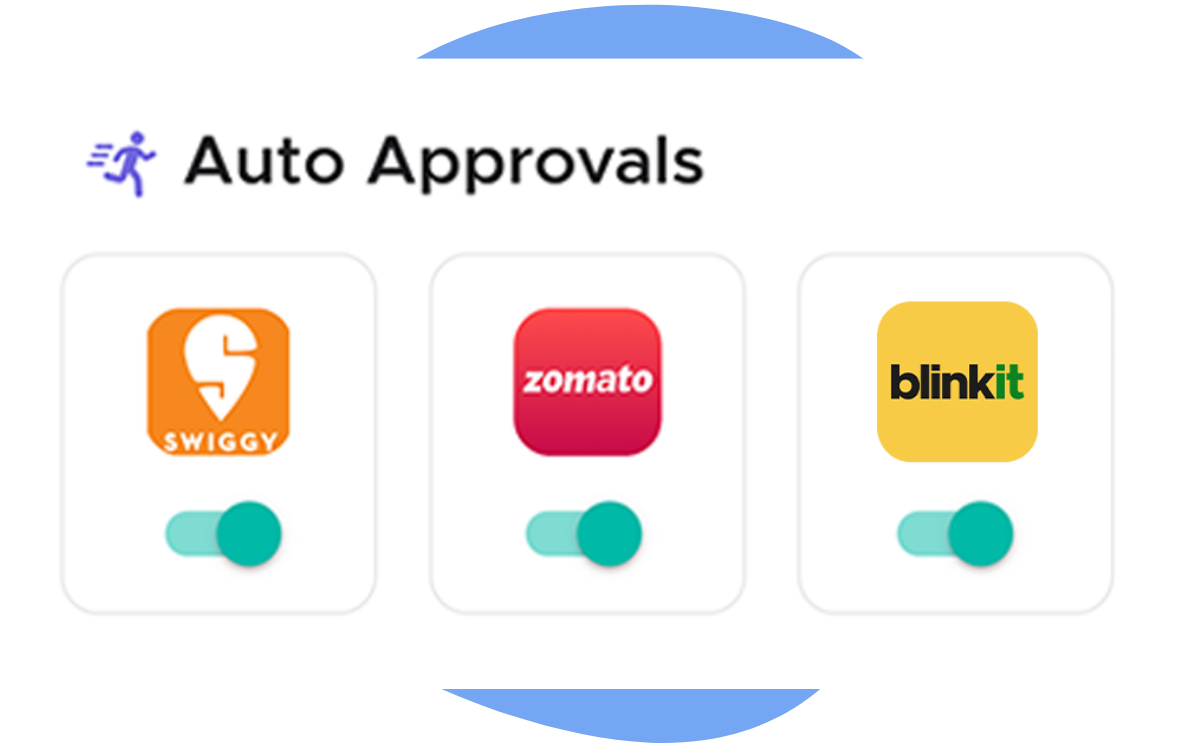
Auto approvals for delivery platforms

Silent approval for trusted delivery platforms

Between 50 and 60 percent of all daily visitor entries in a housing society are deliveries. Requiring manual approval for every Swiggy, Zomato, Amazon, and BigBasket delivery creates notification fatigue — residents start ignoring all gate notifications, including genuine security alerts. Silent approval for trusted platforms resolves this: the resident enables it once per platform, and all future entries are logged and admitted without any notification.

  • Eliminates notification fatigue for residents who receive multiple daily deliveries
  • Reduces gate congestion during evening delivery peak hours
  • Resident maintains full control — silent approval can be revoked per platform at any time
  • Full entry log maintained for every auto-approved visitor
  • Applies per resident, not per community — each resident configures their own preferences

Example ·A resident working from home enables silent approval for food and grocery platforms. On a busy Tuesday, seven deliveries arrive between noon and 8 PM — none interrupt her workday. That evening she reviews the log with timestamps, photos, and visitor names for every entry.

Cab entry with visitor code — privacy-preserving fast entry

For cab pickups, standard visitor approval creates a privacy risk — the guard has to map the cab to the resident's unit, potentially exposing flat numbers to drivers. ADDA's visitor code system for cabs resolves this: the resident generates a visitor code using the last four digits of the cab's vehicle number. The guard enters these digits at the gate, the system identifies the cab as pre-approved, and admits it without displaying the resident's unit number.

Key Advantages
  • Resident's flat number is never displayed to the cab driver at entry
  • Entry is pre-approved and fast — no notification wait at the gate
  • Guard verifies vehicle number against the pre-generated code — impersonation not possible
  • Full entry log maintained including vehicle number and entry time
  • Works for any cab platform — not platform-specific
In Practice

A resident books a cab for an early-morning airport trip and generates a visitor code with the cab's last four digits the night before. At 5 AM the cab arrives, the guard enters the code, the system confirms and admits — the driver never knows which flat the resident lives in.

Printed GatePass for high-control communities

For communities that need physical verification at multiple points — large gated townships, enterprise housing, communities with interior checkpoints — ADDA supports printed GatePass management. When a visitor is admitted, the guard prints a pass containing visitor name, unit being visited, purpose of visit, check-in time, vehicle number, and a unique barcode. Guards at interior checkpoints can scan the barcode to verify authenticity, and at exit the pass is surrendered and the entry is closed.

Key Advantages
  • Visitor movement can be tracked across multiple internal checkpoints, not just the entry gate
  • Barcode verification prevents pass forgery or duplication
  • Prevents visitor roaming — visitor is accountable to the unit and purpose on the pass
  • Supports access control device integration — barcode can trigger barrier opening at checkpoints
  • Particularly useful for large townships where visitors may need to move between blocks
In Practice

A vendor arrives for electrical work in Block F. The guard prints a GatePass specifying Block F, Unit F-204, purpose: electrical repair. When the vendor is later found near Block B, the checkpoint guard scans the barcode, sees the pass is for Block F only, and redirects them — the incident is logged.

Overstay detection — category-specific, automatic

Every visitor category in ADDA Gatekeeper has a configured expected duration. When a visitor's actual stay exceeds this duration, their entry turns red in the Visitors Inside list on the guard's device — automatically, without any manual monitoring. The Visitors Stay Duration chart in the Usage Summary dashboard shows actual vs. configured duration by category across all visits, giving the MC a weekly view of whether configured durations reflect real-world patterns.

Key Advantages
  • Overstay detection is per-category — a Guest turning red at 24 hours and a Food Delivery agent turning red at 30 minutes are appropriately different thresholds
  • Guard sees red entries live — no manual checking required
  • Checkout is a single tap — the system records exit time and closes the entry
  • Unchecked entries accumulate as anomaly data visible to the MC
  • Duration configurations can be updated anytime based on actual usage data
In Practice

If a Food Delivery agent stays beyond 30 minutes, their row turns red on the guard's device — no manual stopwatch, no spreadsheet, just an immediate visual cue to act on.

Visitor History and Wrong Entry Reporting

Every resident can view the complete visitor log for their unit from the ADDA app — every person who entered, their category, entry time, exit time, and whether it was approved manually or via auto-approval. If a resident sees an entry they do not recognise, they can flag it as a wrong entry from the app in three taps. The flag creates an immediate alert for the admin and adds the entry to the anomaly report for investigation.

Key Advantages
  • Full visibility for residents into who has entered their unit and when
  • Wrong entry flagging takes three taps — no need to call the office
  • Every flag creates an admin alert and an anomaly record — nothing falls through the cracks
  • Complete log available for any security investigation or resident dispute
In Practice

A resident returns from a 10-day holiday and reviews her visitor log. She notices a Home Service entry logged to her unit on a day she was away and flags it as a wrong entry. The admin pulls the entry from the Incident Investigator, identifies the guard who logged it via their passcode, and initiates an investigation.

Reports Management Committees actually use

Three reports do most of the operational work for the MC: the Usage Summary daily dashboard, the Anomaly Reports (Wrong Visitor Entries and Visitors Stay Duration), and the Incident Investigator's Visitors tab. Together they answer the questions an MC actually asks — is today normal, are durations configured correctly, and what exactly happened at the gate on a specific date.

In Practice

If a Tuesday shows 400 visitors against a 6-month Tuesday average of 210, that is a genuine anomaly worth investigating — not just a busy day. The MC sees the spike on the Usage Summary in the morning and uses the Incident Investigator to drill into the entries by gate and category.

Key Advantages
  • Usage Summary — visitors today, visitors still inside, and a 7-day trend chart compared against the 6-month historical average for the same day of the week, so a Tuesday is benchmarked against Tuesdays
  • Wrong Visitor Entries — surfaces entries flagged as wrong unit and approvals with no corresponding gate entry, exposing patterns that warrant guard retraining
  • Visitors Stay Duration — grouped bar chart of configured vs. actual average stay per visitor category, so the MC can calibrate overstay thresholds to real-world behaviour
  • Incident Investigator (Visitors tab) — searchable, filterable log of every entry with name, category, vehicle, gate, unit, check-in/out and photo; export to PDF, Excel, CSV or print
  • Use these reports to investigate specific incidents, confirm contractor presence on a given date, respond to resident complaints, or produce audit-ready records for quarterly review
16+ Years · 25,000+ Communities

What ADDA has learned from 16+ years of gate operations

Most visitor management content tells you what the software does. This section tells you what actually happens when communities go live — the patterns, the failure points, and the things that separate a community that runs a tight gate from one that doesn't. This comes from deploying across 25,000+ Communities since 2009.

Lesson 01

The single biggest reason gate management fails is not technology. It is change management.

When a community switches from paper registers and phone calls to a digital visitor management system, the technology is ready on day one. What is rarely ready is the community. Residents who have never used an app for gate approvals get their first visitor notification and have no idea what it is or what to do. Guards who have spent years writing in a register are handed a smartphone and expected to operate it under pressure during peak delivery hours. The gate process breaks — not because the system failed, but because the people were not prepared.

ADDA's deployment approach is specifically designed around this insight. Before going live, two things happen in parallel. On one side, guards receive hands-on training on the Gatekeeper app — how to log each visitor category, how to use the OTP and QR scan, how to handle the Visitors Inside list, what to do when the device is offline. On the other side, residents are informed — through WhatsApp group messages, notice board posters, physical kiosks set up at the gate, and direct outreach from both ADDA's deployment team and the management committee. The message is simple: from this date, you will receive visitor approval requests on your phone. If you do not approve, your visitor will not be admitted. This message needs to go out multiple times, in multiple formats, before going live — not once, not twice, but repeatedly until adoption is confirmed.

Lesson 02

The category that causes the most operational problems is e-commerce delivery.

Guests are rarely a problem — they almost always come pre-registered as expected visitors, the guard scans the QR or OTP, and entry is smooth. The real pressure point is e-commerce and food delivery, for one specific reason: a single delivery agent often arrives to deliver to multiple apartments simultaneously. At peak hours — 7 to 9 PM on weekdays — a community receives multiple delivery agents at the same time, each needing approval from a different resident. The guard cannot wait indefinitely for each approval while other visitors queue up behind. This is exactly why the 55-second approval window exists — the system does not wait. It tries the app for 55 seconds, then automatically triggers an IVR call, then escalates to a manual guard call. At high-volume gates, the auto-approval feature for trusted delivery platforms is not a convenience — it is an operational necessity.

Vendors working on empty flats are the second most common problem category. The owner may be in another city, the tenant may have moved out, the flat is vacant — and the vendor needs access to do work. There is no resident to approve. This requires a specific handling protocol: admin-level override with mandatory reason logging, escalated to the MC for awareness.

Lesson 03

The thing that separates communities that run a tight gate from those that don't is visibility into reports.

This sounds obvious. It is not. Most communities deploy a gate management system and then never look at the data it generates. The Usage Summary dashboard — which shows daily visitor-in count against a 6-month historical average, visitors still inside, wrong entry anomalies, and the Visitors Stay Duration chart by category — is updated in real time and accessible from the community manager app on any device. Estate managers and MC members who check this daily can spot anomalies before they become security incidents. A spike in visitors to a specific unit. A vendor category where actual stay duration is consistently 3x the configured limit. A guard whose shift shows zero checkout records. These are visible in the data. Communities that look at this data run tight gates. Communities that don't, don't.

Operator's Playbook

How visitor management actually runs on ADDA

The configurations, workflows, SOPs and governance practices behind communities that run a tight gate.

How does visitor approval work in ADDA Gatekeeper?

The approval flow in ADDA Gatekeeper is a three-step escalation system designed to ensure that every visitor gets a response, even if the resident is not immediately available, while keeping gate wait times short enough that queues don't form.

Step 1 — App notification (0 to 55 seconds)

When the guard logs a visitor entry in the Gatekeeper app, an instant notification is sent simultaneously to all members registered to that unit on the ADDA app. The notification stays active for 110 seconds. The resident sees the visitor's name, category, and photo. A single tap approves. A tap with a reason denies. The first response received — from any unit member — is the one that counts. The guard sees the decision on the Gatekeeper app in real time.

Step 2 — Automated IVR call (if no app response within 55 seconds)

If no unit member responds to the app notification within 55 seconds, the system automatically triggers an IVR call to all registered members of that unit. The resident receives the call and presses 1 to approve or 2 to deny. No smartphone required — the IVR works on any mobile or landline. Again, the first response received closes the request.

Step 3 — Manual guard call (if no IVR response)

If neither the app notification nor the IVR call receives a response, the guard can call the resident directly from within the Gatekeeper app — provided the admin has enabled this setting and a SIM card is present in the gate device. The guard speaks to the resident and logs the approval or denial manually with a reason.

If the resident remains unreachable after all three steps, the guard follows the SOP for unreachable residents: do not admit, ask the visitor to wait or return later, log the attempt, and notify the shift supervisor.

Why 55 seconds?

This is a deliberate design choice, not an arbitrary timer. At peak hours, multiple visitors arrive simultaneously. If the system waited indefinitely for one resident's response, every subsequent visitor would be held up behind them. The 55-second window is long enough for a resident to notice and respond, but short enough that the gate keeps moving. Communities that find this too short can move high-frequency delivery categories to auto-approval — which removes the wait entirely while maintaining the log.

Visitor types and how each one works

Guests

Guests are the lowest-friction visitor category when managed correctly. The recommended flow is always pre-authorisation — the resident adds the guest as an expected visitor from the ADDA app, enters their name, phone number, and expected arrival window, and the system generates an OTP and QR code. The resident shares this with the guest. When the guest arrives, the guard scans the code or enters the OTP — no approval wait, no phone call, instant entry. The pass is valid only within the configured time window.

For walk-in guests who arrive without pre-authorisation, the standard three-step approval flow applies. The resident approves via app or IVR.

Across communities using ADDA, guest entries are predominantly handled through expected visitor pre-authorisation. Communities where guests are pre-registered as expected visitors have significantly shorter gate wait times and zero approval-related disputes for this category.

E-commerce, food delivery, Cabs

This is the highest-volume category — 50 to 60 percent of all daily visitor entries in a typical community are deliveries. The operational challenge is speed at scale. During evening peak hours, multiple delivery agents from different platforms arrive within minutes of each other, each needing a different resident's approval.

The recommended configuration for this category is silent approval — residents who frequently order from specific platforms can enable auto-approval for those platforms from their ADDA app. Entry proceeds without a notification, and a full log is maintained. For residents who want to stay in the loop without manually approving, a silent log notification can be enabled — they are informed after the fact without being interrupted.

For cab entries specifically, ADDA has a privacy-preserving mechanism: the resident generates a visitor code using the last four digits of the cab's vehicle number. The guard enters these four digits at the gate. The system identifies it as a pre-approved entry and admits the cab without displaying the resident's flat number to the driver — protecting residential privacy while enabling fast, smooth entry.

Vendors working on occupied flats

When a vendor is expected, the resident or facility manager pre-registers the visit with expected work details and arrival window. The guard verifies at entry and logs the visit. Multi-day passes are available for extended jobs — the pass remains valid across the configured period without requiring re-approval for each day.

Vendors working on empty or vacant flats

This is the problem category. The owner is often in another city. The tenant may have just vacated. There is no resident to approve the entry. The correct handling is admin-level override — the MC or estate manager logs the approval with a reason, overrides the standard approval flow, and the visit is logged under admin authorisation. Every override is recorded with the admin's identity, reason, and timestamp. This is the audit trail that protects the community if a dispute arises later.

Resident view

Everything a resident interacts with for visitor management happens inside the ADDA app. The design principle is one consistent interface across all visitor types — learn it once and it works everywhere.

Gate Updates screen: The primary screen for visitor management. Shows all pending approval requests, recent entries, and the expected visitors the resident has pre-registered. Approvals and denials happen from this screen.

Silent approval settings: Residents can enable silent approval for specific categories — Deliveries, Cabs, Home Services, Guests. This is done from Gate Updates → Silent Approval, or from My Unit settings. Enabling silent approval for a category means entries from that category are admitted automatically without any notification interrupting the resident. The full entry log is still maintained.

Expected visitor creation: Resident goes to Gate Updates → Add Expected Visitor. Enters name, phone number, expected arrival window, and optional vehicle details. System generates OTP and QR. Resident shares with visitor. Pass carries a configurable note set by the admin — for example "Please show this visitor code to security at the entrance."

Visitor history and wrong entry reporting: Residents can view all visitor entries for their unit — every person who came, when, and for how long. If a resident sees an entry they do not recognise, they tap the entry, tap the three dots at the top right, and select "Mark as wrong entry." This flags the entry for admin review and creates an anomaly record in the system.

At-home contact: Residents who are frequently away, or household members who do not use a smartphone, can be added as an at-home contact. When a visitor arrives, the IVR call goes to this number. This ensures no unit is locked out of the approval flow due to technology constraints — particularly relevant for elderly residents and homemakers who may not have the app installed.

Notification troubleshooting: If a resident is not receiving visitor notifications, the ADDA app has a built-in diagnostic tool. Go to the Bell icon → "Missing out on a few notifications?" The app automatically checks all required settings and permissions and identifies the specific cause — whether it is a phone-level notification block, a background data restriction, or an app setting. This self-service diagnosis reduces support calls significantly.

Guard view

The Gatekeeper app on the guard's device is the operational interface for all gate activity. It is designed for speed — a guard should be able to log a standard visitor entry in under 30 seconds once trained.

Entry workflow step by step:

  1. Open Gatekeeper app → tap New Visitor Entry
  2. Select visitor category — Cab, Courier, Delivery, Food, Food Delivery, Gas, Grocery, Guest, Home Service, Milk, Official, Parcel, Service, Trainer, Vendor, Water Tanker
  3. Enter visitor name and phone number
  4. Select the unit being visited from the resident directory
  5. Capture photo if required for that category
  6. Submit — approval request sent to resident immediately
  7. On approval, tap Admit — entry logged with timestamp and gate name

OTP and QR entry flow: For expected visitors with a pre-generated pass, the guard scans the QR code or enters the OTP. If valid and within the time window, entry is admitted instantly — no approval wait. If the code has expired, the guard cannot override and must contact the resident for manual approval.

For cab entries with a visitor code, the guard enters the last four digits of the vehicle number. The system matches it against the pre-approved cab entry. If matched, entry is admitted without displaying the resident's unit number — privacy is maintained.

Visitors Inside list: Live view of every visitor currently on premises. Shows name, category, unit, entry time, and duration. Entries that have exceeded their category's configured duration turn red automatically. The guard checks this list regularly and follows up on any red entries.

Manual override: If a resident cannot be reached after all three steps in the approval flow, the guard can admit manually — but only with a logged reason. The override records the guard's identity, timestamp, and reason. Every override is visible to the admin and MC in the Incident Investigator.

Offline operation: When internet connectivity is lost at the gate, the Gatekeeper app continues to function in offline mode. Entries are stored locally with reliable timestamps and sync automatically when connectivity returns. During offline operation, residents do not receive approval notifications — the guard logs entries using their judgment and the SOP for offline mode. At shift handover, the guard must confirm all offline entries have synced before handing over the device.

Admin and MC configurations — visitor management settings

Gatekeeper App tab

  • Capture complete vehicle details — Enable to require vehicle number for all entry categories. Recommended for Vendor, Service, Official, and Cab categories at minimum.
  • Allow resident's mobile to be called from Gatekeeper app — Enable to allow guards to call residents directly from the app during the approval flow. Requires a SIM card in the gate device. This is Step 3 of the approval escalation and should be enabled in all communities.
  • Printer available — Enable if a gate pass printer is connected. Required for GatePass Management — the system generates a printed pass with visitor name, unit, purpose, check-in time, vehicle number, and a unique barcode for checkpoint verification.
  • Do not allow security guard to take photos of visitors in the Guest category — Enable if the community's privacy policy restricts photography of personal guests. Photos remain enabled for Delivery, Service, Vendor, and Official categories.
  • Visitor check-in alert — Set the threshold number of visitors checked into a single unit on a given day. When this number is exceeded, the admin receives an automatic alert. Default setting of 8 is a reasonable starting point — adjust based on community profile. Communities with frequent social gatherings may set this higher; communities where commercial activity in residential units is a concern may set it lower.

Setup Gates tab

Name each gate and configure it as entry-only, exit-only, or both. Every visitor entry is tagged to the specific gate where it occurred. For communities with multiple gates — main gate, back gate, service gate — this configuration ensures the Incident Investigator report can filter by gate, making it possible to investigate gate-specific anomalies.

Setup Visitor Entry Reasons tab

This is the overstay detection engine. Configure the expected duration for each category (for example):

  • Cab: 20 mins
  • Courier: 30 mins
  • Delivery: 1 hour
  • Food Delivery: 30 minutes
  • Gas: 1 hour
  • Grocery: 1 hour
  • Guest: 24 hours
  • Home Service: 2 hours
  • Milk: 1 hour
  • Official: 4 hours
  • Parcel: 1 hour
  • Trainer: 2 hours
  • Vendor: 1 hour
  • Water Tanker: 1 hour

When a visitor's actual stay exceeds the configured duration for their category, their entry turns red in the Visitors Inside list. Review these durations after the first two weeks using the Visitors Stay Duration chart in the Usage Summary — the chart shows configured duration vs. actual stay duration by category across all visits. If Food Delivery entries are consistently turning red within 15 minutes, the 30-minute default is working. If Guest entries are regularly showing actual stays of 48 hours against a 24-hour configuration, the configuration needs updating.

Resident App tab

  • Send ADDA mobile app notifications to the resident of the unit on visitor check-in — Keep this enabled. This is the primary approval notification trigger.
  • Send ADDA mobile app notifications to resident on staff check-in — Separate toggle for domestic staff entries. Enable this — residents who track domestic help attendance rely on this notification.
  • Visitor pass note — Configure the text that appears on every expected visitor pass. The default — "Please show this visitor code to security at the entrance" — is functional. Communities can customise this with additional instructions, for example specifying which gate visitors should approach.

Setup Gatekeeper Passcodes tab

Assign a unique six-digit passcode to every guard. Each guard uses their personal passcode to log into the Gatekeeper app on the shared gate device. This means every entry in the system is attributed to a named guard. If a wrong entry or unauthorized admission is flagged, the admin can identify exactly which guard was on duty and logged that entry. This is not optional — every guard must have an individual passcode before going live. Shared or generic passcodes defeat accountability entirely.

Recommended settings before going live:

  • Enable vehicle capture for Vendor, Service, Official, Cab
  • Enable photo capture for Guest, Service, Vendor, Official — disable or make optional for Food Delivery and Grocery to maintain speed
  • Enable resident mobile calling from Gatekeeper app
  • Set visitor check-in alert at 8, adjust after first month
  • Configure all gates with correct entry/exit designations
  • Assign individual passcodes to all guards
  • Set visitor pass note
  • Configure incident categories: Accident, Panic Alert, Theft, and any community-specific categories

Common failure modes and how to fix them

Residents are not responding to approval requests — visitors waiting at the gate

The most common failure in the first weeks. Guards are calling residents on personal numbers while visitors wait.

Fix · Verify all residents have the ADDA app installed and notifications enabled. Use the built-in notification diagnostic — Bell icon → "Missing out on a few notifications?" — to identify specific phone-level blocks such as background data restrictions or notification permissions. Enable at-home numbers for residents who prefer IVR over the app. For categories where resident response rates are consistently low, enable silent approval at the community level for that category.

Too many notifications — residents muting the app

The opposite problem. A resident receiving 8–10 delivery approval requests per day starts ignoring everything, including real security alerts.

Fix · Enable silent approval for high-frequency delivery categories. The target is that a resident's daily gate notifications should be limited to genuinely meaningful events — unexpected visitors, security alerts, visitors they did not pre-register. Routine deliveries from known platforms should run on silent approval.

Duplicate entries for the same visitor

A visitor shows up with a QR code, the guard cannot scan it, creates a new manual entry, and now the visitor appears twice in the log.

Fix · Train guards to check the Expected Visitors list before creating any new manual entry. If a visitor says they have a pass, the guard checks the list first. If the QR scan fails, switch to manual OTP entry — ask the visitor for the numeric code displayed alongside the QR. Only create a new manual entry if neither the QR scan nor the OTP entry works, and log the reason.

Wrong apartment number entered — approval goes to wrong resident

Guard is under pressure during peak hours and enters the wrong unit number. A completely different resident receives the approval request. That resident denies. The actual resident is never contacted.

Fix · Enable visitor self-check-in at high-volume gates — the visitor enters their own unit number, eliminating transcription errors. Train guards to verify unit number by looking up the visitor's contact in the resident directory before submitting the entry. Monitor the Wrong Visitor Entries anomaly chart weekly — a consistent pattern of wrong-unit entries from a specific gate or shift identifies the specific training gap.

Visitors not checked out — Visitors Inside list becomes unreliable

Over days and weeks, the Visitors Inside list accumulates entries that have actually left but were never checked out. The list loses operational value because guards can no longer distinguish genuine overstays from forgotten checkouts.

Fix · Make checkout a mandatory step in the shift-end SOP. Before handing over to the incoming shift, the outgoing guard must clear all entries on the Visitors Inside list — confirming each either by physically verifying the visitor is still inside, contacting the resident, or logging a manual checkout with a note. This SOP must be practiced from day one, not introduced after the list has become cluttered.

Vendor needing access to a vacant flat — no resident to approve

Owner is out of city, tenant has vacated, vendor is at the gate. Standard approval flow fails.

Fix · This requires admin-level handling. The MC or estate manager logs the approval as an override — vendor name, company, purpose of work, and a note confirming the MC's authorisation. The override is recorded with the admin's identity and is visible in the Incident Investigator. For communities with frequent renovation work on vacant units, consider pre-configuring a community-level approval channel for this specific scenario.

Gate device goes offline

Connectivity is lost. The guard cannot submit entries. Residents do not receive notifications.

Fix · Ensure minimum 2 Mbps internet with 80% quality at the gate device. When offline, the Gatekeeper app stores entries locally with timestamps and syncs when connectivity returns. Guards must be trained to continue logging entries even in offline mode — the process does not stop. At shift handover, the outgoing guard confirms all offline entries have synced before handing over the device. Any unsynced entries must be flagged to the admin for manual reconciliation.

Guard SOP — visitor management

This is the standard operating procedure for visitor management. Print and add to the guard handbook at every gate.

On a visitor's arrival:

  • Ask for visitor name, phone number, and which unit they are visiting
  • Select the correct category in the Gatekeeper app
  • Enter visitor details, select unit, capture photo if required for this category
  • Submit — do not admit before approval is received
  • Wait for the app notification response — up to 55 seconds
  • If no app response, the system triggers IVR automatically — wait for IVR response
  • If no IVR response, call the resident from within the Gatekeeper app
  • If resident is unreachable after all three steps: do not admit, ask visitor to wait or return, log attempt, notify shift supervisor

On admitting an expected visitor with OTP or QR:

  • Ask the visitor for their QR code or OTP
  • Scan QR or enter OTP in the Gatekeeper app
  • If valid and within time window: admit, entry is logged automatically
  • If code is expired or invalid: do not admit, call the resident for manual approval, log reason

For cab entry with visitor code:

  • Ask the resident's name and the cab's vehicle number
  • Enter the last four digits of the vehicle number in the Visitor Code field
  • If matched: system shows pre-approved, admit, entry logged without showing flat number
  • If not matched: process as standard visitor entry

At visitor exit:

  • Open Visitors Inside list
  • Find the visitor by name or unit
  • Tap checkout — entry is timestamped and closed
  • For any red entry (overstay): confirm whether visitor is still inside or has left; if left, log manual checkout with note; if still inside, contact the unit

At shift handover:

  • Open Visitors Inside list — review all open entries
  • For each entry still showing as inside: physically verify, or call the unit to confirm status
  • Log checkout for any visitor confirmed to have left but not checked out, with a note
  • Confirm all offline entries have synced if the device had connectivity issues during the shift
  • Brief the incoming guard verbally on any open entries, pending overrides, or unusual incidents
  • Do not hand over the device until all entries are reconciled

If a resident calls to report a wrong entry:

  • Note the resident's unit, the date and approximate time, and the visitor name or category in dispute
  • Escalate immediately to the shift supervisor — do not attempt to resolve independently
  • Supervisor uses Incident Investigator to pull the specific entry
  • Log a note against the entry and raise an incident report under the relevant category

MC runbook — visitor management oversight

Daily (security supervisor or estate manager):

  • Check Usage Summary — visitor-in count today vs. 6-month daily average for this day
  • Check Visitors Still Inside — any number significantly above zero at end of day warrants follow-up
  • Confirm all guard passcode assignments are current — departed guards must be deactivated immediately
  • Review any admin overrides from the previous day in the Incident Investigator

Weekly (MC or estate manager):

  • Review Wrong Visitor Entries anomaly chart — look for patterns by gate or shift
  • Review Visitors Stay Duration chart — identify categories where actual duration consistently exceeds configured duration and update settings
  • Check Expected Visitors usage chart — if below recommended level, run a resident awareness message
  • Spot-check 10–15 entries from the Incident Investigator visitor tab for completeness and accuracy
  • Review Panic Alerts tab — confirm all alerts have a response date

Monthly:

  • Export full visitor log from Incident Investigator — store in MC shared drive
  • Review guard passcodes — deactivate any inactive or departed guard
  • Update visitor duration configurations if the stay duration chart shows consistent mismatches
  • Review gate broadcast messages — remove outdated instructions, add any new ones
  • Check notification adoption — what percentage of residents are receiving and responding to app notifications vs. IVR? Low app response rates indicate residents have not enabled notifications properly

Quarterly:

  • Full audit of visitor log for any patterns that suggest security policy gaps
  • Review silent approval adoption — is the feature being used for the right categories? Over-use of silent approval for guest categories (not just delivery) may indicate residents are disengaging from gate security
  • Review admin override log — a high number of overrides from a specific guard warrants investigation
Safety & Security

Is free visitor management software safe for housing societies?

Most housing societies in India today run their gates on apps that were deployed at zero cost. The zero-cost deployment was a deliberate market strategy — acquire communities quickly, then monetise the user base through advertising.

Here is the specific mechanism that makes this a security problem, not just a privacy inconvenience.

An ad-supported visitor management app uses push notifications as its monetisation channel. The same infrastructure that delivers a security alert — "visitor at your gate, please approve" — is also used to deliver promotional content. Residents cannot filter one from the other at the operating system level. Both arrive as push notifications from the same app. Over weeks and months, residents whose notification feeds are filled with ads for spa packages and weight loss programs alongside genuine visitor approval requests learn — behaviorally, not consciously — that the app's notifications are mostly noise. They mute the app. Or they stop opening notifications from it quickly. Or they uninstall it entirely.

The security consequence is direct. When residents mute or disengage from the app, visitor approval response rates fall. Guards stop waiting for approvals and start admitting on judgment alone. The digital approval log — the only audit trail the community has — becomes unreliable. In the ADDA deployment experience across 25,000 communities, the single strongest predictor of whether a community's visitor approval rate is high or low is whether the resident app is ad-supported. Communities where residents trust the notification channel respond to approval requests. Communities where the channel is polluted with promotional content don't.

The data belongs to the community. Visitor logs contain the names, phone numbers, and movement patterns of every person who has entered the premises. In an ad-supported model, this data has commercial value beyond the gate — it is a targeting signal for advertisers. Residents in most communities have no visibility into what data is collected, how long it is retained, or whether it is shared with third parties.

ADDA is funded entirely by software subscription. There are no ads, no sponsored content, no data sharing with advertisers, and no revenue model that depends on resident engagement with commercial content. The notification channel carries one category of content: security-relevant gate updates. Residents who trust the channel respond to it. This is not a feature — it is the foundation on which reliable visitor management is built.

Data Protection

How ADDA handles visitor data — DPDP compliance

India's Digital Personal Data Protection Act, 2023 applies directly to the personal data that a visitor management system collects. Every visitor entry in ADDA Gatekeeper captures personal data — visitor name, phone number, photo, movement record — and this data must be handled according to the Act's requirements.

What data is collected

  • Visitor name, phone number, and category at the time of entry
  • Visitor photo (where enabled by the admin for that category)
  • Vehicle details (where vehicle capture is enabled)
  • Which unit was visited, which gate was used, which guard logged the entry
  • Entry time, exit time, approval method, and approval status

What is not collected

  • Visitor biometrics unless a biometric hardware device is separately integrated by the community — this is a community decision, not a default
  • Any data about the visitor beyond what is necessary to verify and log the entry
  • Visitor location beyond the gate entry point

Who can access visitor data and under what conditions

  • Residents — their own unit's visitor log only
  • Guards — active entries they are managing; resident contact details accessible only for approval calls, not for personal use
  • Admins and MC — full logs via Incident Investigator with date and category filtering
  • Vehicle RFID logs — admin-only, requires password re-entry, every access is logged with identity and timestamp

ADDA's specific privacy controls for visitor data

  • Cab visitor code system ensures resident unit numbers are never displayed to drivers
  • Resident phone numbers go through ADDA's notification infrastructure — visitors and delivery agents never receive resident contact details directly
  • Role-based access controls ensure guards see only what they need to operate the gate
  • Vehicle RFID access logging means every sensitive data access is auditable

Recommended data governance for your community

  • Keep detailed visitor logs for 12 months — sufficient for most operational and legal needs
  • After 12 months, retain aggregated data (daily counts by category) for 3–5 years for historical reference
  • Restrict full log export access to named MC members — not all committee members need this level of access
  • Post a brief privacy notice at the gate informing visitors that entry data including photos is captured and retained — this is both good practice and a DPDP Act requirement for data collection transparency
  • Document who has admin access to the Incident Investigator and review this list at every committee handover

Trusted across India's leading communities since 2009

Gartner — Category Leader
Capterra — Shortlist
ET Real Estate Awards — Best Housing Society ERP
Software Suggest — Best Support
Software Advice — FrontRunners
100%

Ad-Free, Always

Privacy

Focused by Design

4.7

App Store Rating

1,250+

Features Built-in

DPDP & ISO

Certified

16+

Years of Leadership

Loved by Communities

What Communities Say

"We are happy with ADDA. There is no manual work involved. Visitor check-ins and check-outs are handled with ease, and security has improved multifold."
TL
TVH Lumbini Square
Chennai

"ADDA has helped to streamline the daily visitors, delivery service and in return strengthen the security of our apartment block."

OS
Om Sakthi Heritage
Bengaluru

"Earlier, it was difficult to manage our society's security records and visitor registers. After implementing GateKeeper, visitor management became much easier, saving significant time and effort."

78
78 Gokuldham
Ahmedabad
Let's Talk

Bring your gate operations onto one structured platform

See how 25,000+ housing societies run secure, ad-free, audit-ready gate operations on ADDA.

Got questions?

Frequently Asked Questions